
KRONOFLOW · GUIDE
Change the timing of a day in Kronoflow
Updated · November 2, 2026
Your blocks give the day its schedule, and you can change their timing on any date. These examples show how to give a block more room or put an action somewhere else.
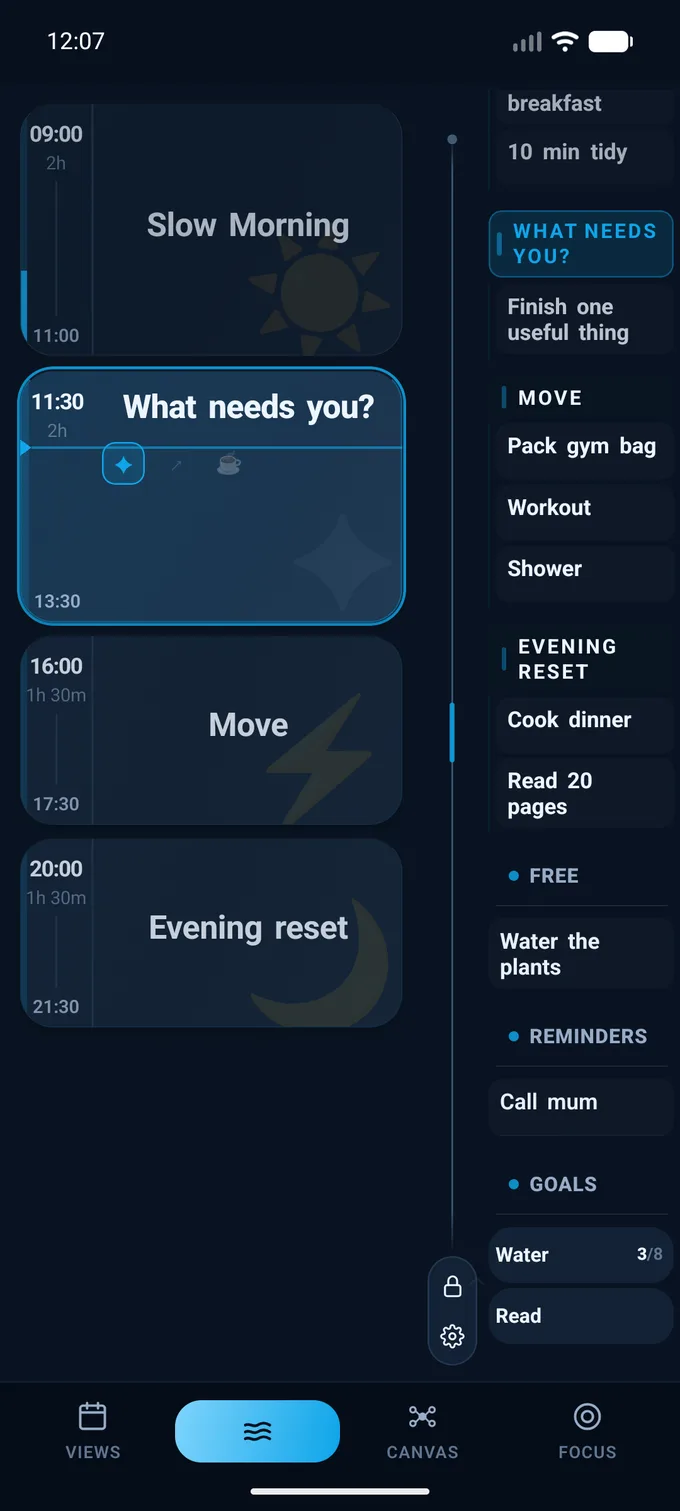
Resize a block
In Flow edit mode, drag the end of a block to change its duration. For example, give a work block another twenty minutes. Apply the change to the selected date when you want the usual schedule to stay the same on other days.
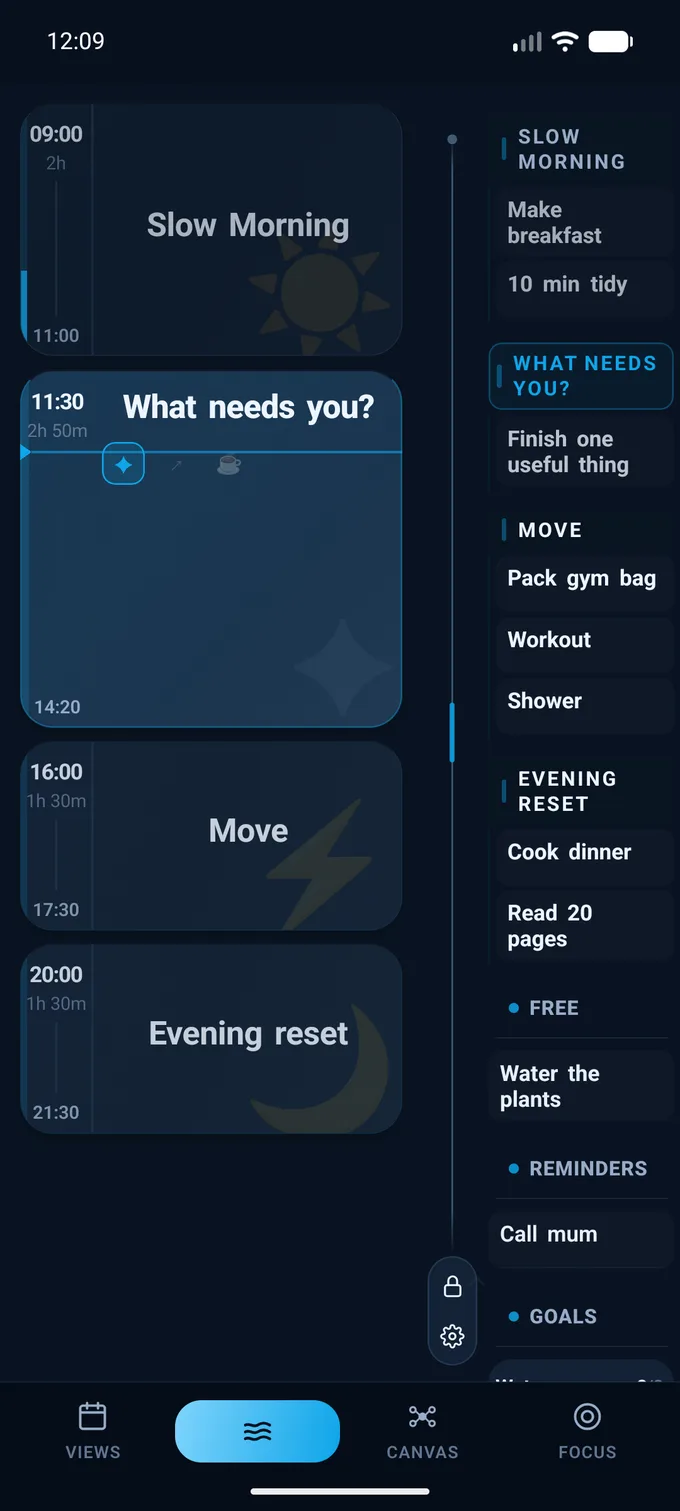
Move an action
Drag an action into the block where you want to do it. In the example, “10 min tidy” moves to the afternoon. Choose the selected date if the change is for that day.
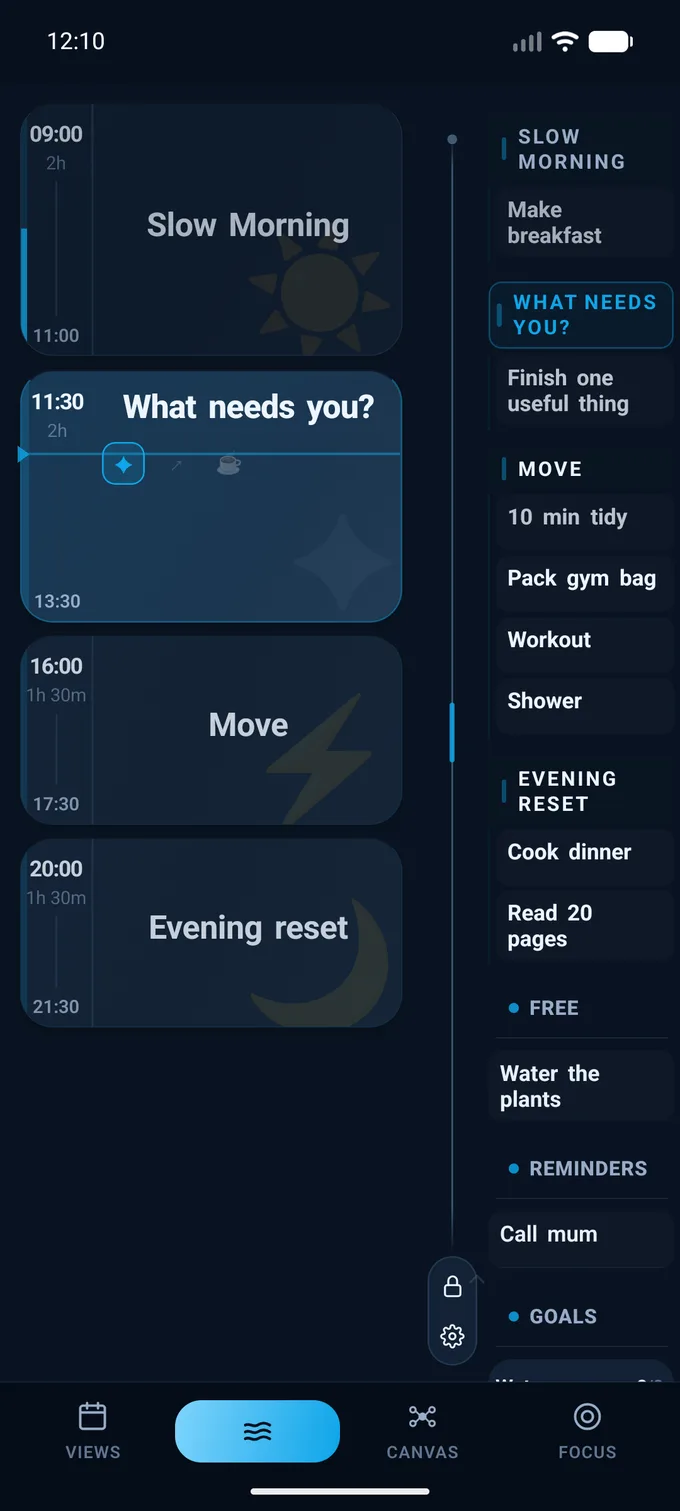
Move several unfinished actions
Use Replan when you want to move the unfinished actions from a block together. Choose the target offered in the sheet, then check the destination before applying.
Choose an option for that day
A block can offer a walk or a stretch at home. Pick the option you want for the selected day; you can keep the alternatives in the block for another date.
Check the result in Flow
The block times and actions stay together on the screen, so you can see where the moved action is and when the next block begins.
Doing this in Kronoflow
Start with a block and the actions you want inside it. Add repetition when you want that setup on other days. See the morning and evening example or save the setup as a Structure.